How to Preview Open Graph and Social Media Link Cards
Preview how your links will appear on Facebook, Twitter, LinkedIn, Slack, and Discord before publishing. Understand Open Graph and Twitter Card meta tags, catch missing images and truncated descriptions, and debug why your OG tags are not showing up. Learn platform cache durations — Facebook caches for 30 days, Twitter for 7 days, LinkedIn for 7 days — and how to force a refresh with each platform's debugger tool when you update your tags.
You publish a blog post and share it on Twitter. The preview card shows the wrong image, the description cuts off mid-sentence, and the title is from a completely different page. Open Graph preview tools catch these issues before your content goes live.
How the preview tool works
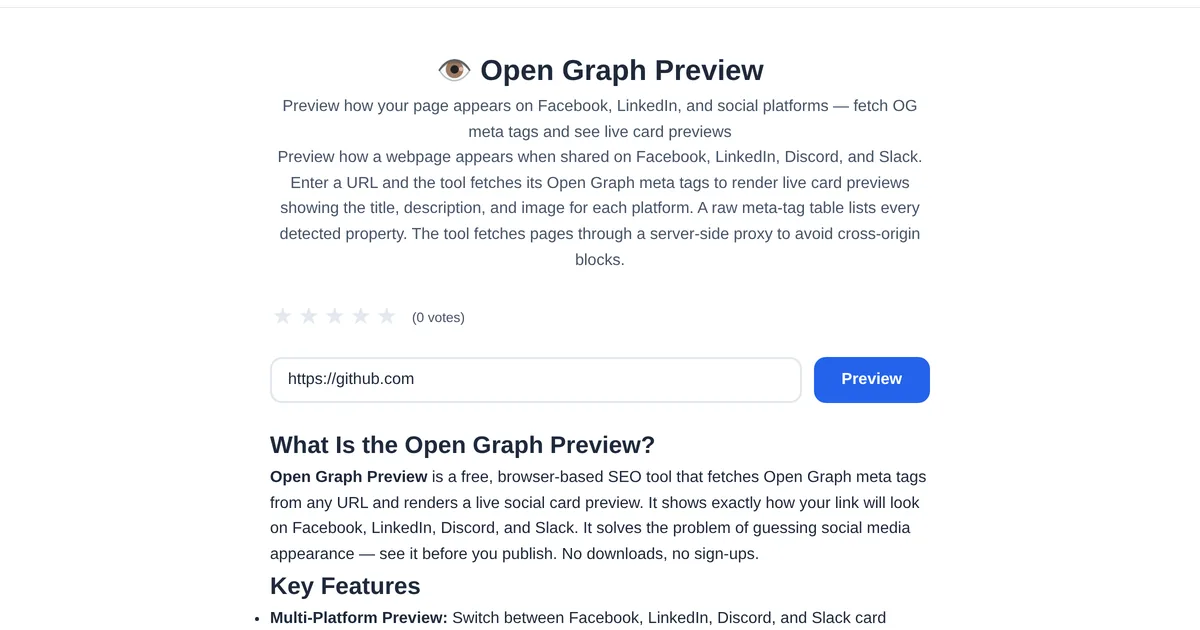
The ToolStand Open Graph Preview takes any URL and simulates how it will appear when shared on Facebook, Twitter, LinkedIn, and Slack. It reads the page og:title, og:description, og:image, twitter:card, and other meta tags, then renders realistic preview cards for each platform. Each platform has different image dimensions, description lengths, and layout rules — the preview shows all of them.
Common issues to catch
Missing og:image. The most common issue — without an og:image tag, Facebook and LinkedIn show a blank or default image. Wrong image dimensions. Facebook prefers 1200x630. Twitter large cards use 1200x675. A portrait image gets awkwardly cropped. Description truncation. Facebook truncates at about 200 characters, Twitter at about 200. Caching issues. Facebook caches OG data aggressively. Use the Facebook Sharing Debugger after the preview tool confirms your tags are correct.
Platform cache durations — why your changes are not showing
Each platform caches OG data aggressively. Facebook caches OG tags for up to 30 days — the longest of any platform. Use the Facebook Sharing Debugger to force a refresh. Twitter caches cards for 7 days; the Card Validator clears the cache on validation. LinkedIn caches for 7 days; use their Post Inspector. Slack and Discord cache more aggressively — Slack can hold cached unfurls indefinitely until you use the chat.unfurl API. The golden rule: validate and debug before the first share, because changing tags after a link has been posted on Slack is an uphill battle.
The OG debugging pipeline — a step-by-step workflow
Step 1: Run your URL through the OG Preview tool to see parsed tags immediately. Step 2: Use the platform-specific debuggers (Facebook Sharing Debugger, Twitter Card Validator, LinkedIn Post Inspector) to force a cache refresh. Step 3: Check your robots.txt — if it blocks the platform's crawler (facebookexternalhit/1.1, Twitterbot, LinkedInBot), your OG tags will never be fetched. Step 4: Verify your image is at least 1200×630px and under 5 MB — Facebook rejects images below 200×200px. Step 5: Check that your server returns OG tags in the initial HTML response, not after JavaScript rendering. Most platform crawlers do not execute JavaScript. The OG Preview tool helps with step 1; the rest require platform-specific tooling.
robots.txt and OG — the silent tag killer
A restrictive robots.txt is the most common — and most overlooked — reason OG tags fail. If your robots.txt blocks /assets/ or specifies Disallow: /, platform crawlers cannot fetch your OG image or even the page itself. Each platform uses a different user-agent: Facebook uses facebookexternalhit/1.1, Twitter uses Twitterbot, LinkedIn uses LinkedInBot, and Slack uses Slackbot-LinkExpanding. A robots.txt that allows Googlebot may still block these specific crawlers. Use the Robots.txt Generator to create a file that explicitly allows social media crawlers while blocking unwanted bots. After updating robots.txt, re-run each platform's debugger to clear the cache.
The complete OG tag checklist — 8 tags every page needs
Every page you want to share well needs these tags: 1. og:title — 55-65 characters, avoid truncation. 2. og:description — 2-3 sentences, 155 characters max for Facebook. 3. og:image — 1200×630px, JPG or PNG, under 5 MB. 4. og:url — the canonical URL (important: this is the URL that gets shared, not necessarily the current page). 5. og:type — 'article' for blog posts, 'website' for homepages. 6. twitter:card — 'summary_large_image' for big previews. 7. og:image:width and 8. og:image:height — helps Facebook render the image instantly without re-downloading. Use the Meta Tag Generator to create all tags in one go, then preview with the OG Preview tool before publishing.
Dynamic OG tags — why your JavaScript-rendered tags do not work
Most social media crawlers do not execute JavaScript. They fetch the raw HTML response and parse OG tags from it. If your site is a single-page application (SPA) that injects OG tags via JavaScript — for example, using React Helmet or Vue Meta — Facebook and Twitter will see the default index.html tags, not the per-page dynamic ones. Solutions: (1) use server-side rendering (SSR) for public pages, (2) use a pre-rendering service like Prerender.io, or (3) generate static HTML at build time. Test this by running your URL through the OG Preview tool — it shows exactly what a crawler will see. If the preview is blank or shows defaults, your tags are not in the initial HTML.
Fixing preview issues
Use the Meta Tag Generator to create correctly sized OG and Twitter tags. Paste the generated tags into your page, then re-run the OG Preview to verify. Iterate until every platform shows the card you want.
Explore the full collection of free tools at toolstand.io. Free, forever. No sign-up. No download. Just tools that work.
Frequently Asked Questions
How do I test OG tags on localhost or a staging server?
Platform debuggers require publicly accessible URLs — they cannot reach localhost or internal networks. For local testing, use the OG Preview tool, which fetches and parses tags from any URL you provide, including localhost (if the page is served locally). For staging, use a public staging URL or a tunnel service like ngrok, then run it through the platform debuggers. Always verify OG tags on staging before deploying to production.
Why does Facebook show an old image even after I changed the OG tags?
Facebook caches OG data for up to 30 days. After updating your OG image or description, you must use the Facebook Sharing Debugger to scrape the URL again — the 'Scrape Again' button forces an immediate cache refresh. Without this, Facebook continues to use the cached version. LinkedIn and Twitter have similar debuggers; each platform's cache is independent, so you must refresh each one separately.
What image size works for all social platforms?
The universal sweet spot is 1200×630 pixels, under 5 MB, in JPG or PNG format. This size works for Facebook (minimum 1200×630), Twitter (2:1 aspect ratio for summary_large_image), LinkedIn (1200×627), and Slack/Discord. Avoid SVG images — most platforms do not support them for link previews. Avoid images under 200×200px; Facebook explicitly rejects them. Use the OG Preview tool to verify how your image renders across platforms before publishing.
Do I need both OG tags and Twitter Card tags?
Twitter falls back to OG tags if Twitter Card tags are missing — so in theory, OG tags alone are sufficient. In practice, using both gives you more control: twitter:card lets you choose between 'summary' (small thumbnail) and 'summary_large_image' (large preview), and twitter:image lets you specify a different image optimized for Twitter's timeline. The OG Preview tool shows both OG and Twitter card previews side by side.
Why does Slack show no preview at all for my link?
Slack unfurls require: (1) the page must be publicly accessible (no auth walls), (2) the OG tags must be in the initial HTML (not JavaScript-rendered), (3) the Slackbot-LinkExpanding user-agent must be allowed in robots.txt, and (4) your Slack workspace must have link unfurling enabled (it is on by default). Slack also caches aggressively — if a link was shared before OG tags were added, Slack may never re-fetch it. Use the /unfurl Slack command or the unfurl API to force a refresh.